FDIC-Insured - Backed by the full faith and credit of the U.S. Government
FDIC-Insured - Backed by the full faith and credit of the U.S. Government






Digital Wallets
Make payments fast, secure, and convenient with your digital wallet. Explore the options available to you with a Provident Debit Mastercard®.

One Wallet. Endless Possibilities.
Your digital wallet keeps your debit card close at hand, making everyday payments easier, wherever you go.
With digital payment services available at your fingertips, enjoy the comfort and convenience of seamless transactions without even having to pull out your physical wallet.
Pay Your Way
Apple Pay®
For Apple users, set up Apple Pay without any additional apps and start making payments securely and quickly.1
Google Pay™
For Android users, easily make payments with extra layers of security.2
Samsung Pay™
For Samsung users, use the Samsung app for simple and secure shopping.3
Benefits of Using Digital Wallets
Manage and monitor your spending right from your mobile phone. Your money simplified - tap, send, and go.
- Fast, Contactless Payments
- Secure Transactions
- Wide Acceptance
- Convenience on the Go
HOW TO USE DIGITAL WALLETS
Provident Bank makes it easy to add your new debit card to your digital wallet. With the "Tap to Add Card" feature, you can securely enroll your card by simply tapping it to your smartphone. This new feature uses the same secure chip technology as in-store payments to help protect your information and reduce fraud.
Below are the 4 easy steps to add your card to your digital wallet:
- On your smartphone, open the digital wallet app and select "Add Card".
- When prompted, hold your debit card close to the back of your phone.
- Your phone will read the card's secure chip to confirm you're in possession of the physical card.
- Once verified, your card will be added to your wallet and ready to use.
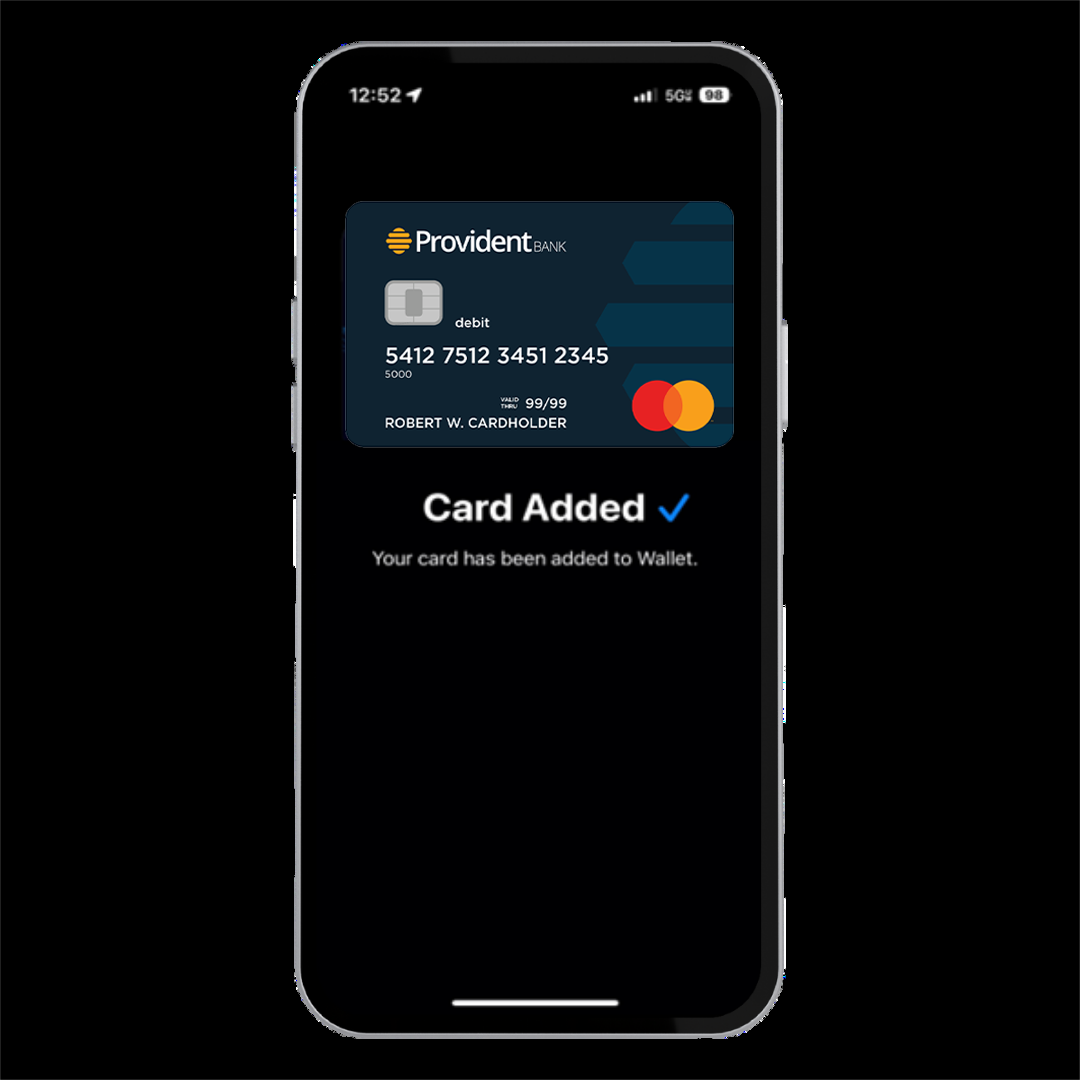
Note: Images shown reflect the Apple Pay® experience. Steps to add your debit card to other digital wallets, such as Google Pay™ or Samsung Wallet™, may vary.
Frequently Asked Questions
Which digital wallets are supported with the Provident Bank mobile app?
With the Provident Bank mobile app, you can make secure payments using Apple Pay, Samsung Pay, and Google Pay.
How do I use a digital wallet?
How do I add a card to my digital wallet?
For Apple users, in your digital wallet app select "Add Card". When prompted, hold your debit card close to the back of your phone to allow it to read the card's secure chip. After verification, your card will be added and ready to use.
For Google and Samsung users, in your digital wallet app select "Add Card". When prompted, hold your debit card close to the back of your phone to allow it to read the card's secure chip, then follow the steps to authenticate with your bank. After verification, your card will be added and ready to use.
Disclosures
1 Apple Pay available on select Apple® devices. See Apple site for complete list.
2 Google Pay is available for any NFC- and HCE-enabled Android device running KitKat 4.4 or later.
3 Samsung Pay available on select Samsung devices. See Samsung site for complete list.
 Go Back
111 Wood Avenue South
Suite 200
Iselin, NJ 08830Mailing Address
P.O. Box 1001
Iselin, NJ 08830-1001